Why Indian feeds get disapproved more than US feeds
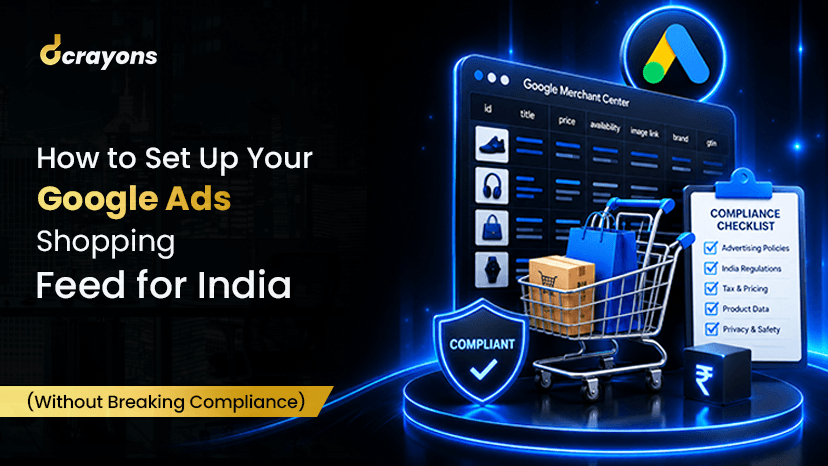
Setting up Google Shopping in India looks like a routine task: connect Shopify, push the feed, wait for products to approve, start campaigns. In practice, 40-60 percent of Indian Shopify catalogs hit at least one feed disapproval in the first 30 days. Some reasons are India-specific (GST handling, MRP requirements, regulated categories); others are universal but bite harder when combined with India quirks.
This guide walks through the setup full-scope with the India-specific gotchas flagged inline. Doable in 60-120 minutes if you have Shopify + Google Merchant Center + Google Ads admin access.
What you need before starting
- Shopify admin at the store-owner or staff-admin level.
- Google Merchant Center account (free; create at merchants.google.com if you don't have one).
- Google Ads account linked to the Merchant Center.
- Verified domain + business registration. Merchant Center verifies your business; for India this means proof of GST registration + business address. Have your GSTIN + company registration certificate ready.
- A product catalog with at least 10 products to test with. Single-product catalogs can be approved but the optimisation surface is so narrow that you'll struggle to learn anything useful.
Step 1: create the Merchant Center account properly
In Merchant Center setup:
- Country of sale: India.
- Time zone: Asia/Kolkata.
- Currency: INR.
- Business address: your registered business address (matching your GST registration).
- Customer service: provide phone + email. Indian customers expect a phone number; the email-only contact is a common reason for low-tier verification.
India-specific gotcha #1: if your business is registered in one Indian state and sells PAN-India, you still register one Merchant Center under your registered state. Google handles the multi-state delivery internally.
Step 2: connect Shopify to Merchant Center
Shopify has a native Google channel app. Install it from Shopify admin -> Apps -> "Google & YouTube" by Google.
Setup steps: 1. Sign in with the Google account that owns your Merchant Center + Google Ads. 2. Approve the connection. The app reads your catalog, fetches images, prepares the feed. 3. Set the destination(s): Shopping ads + free listings (always enable both. free listings are organic shopping visibility, no extra cost). 4. Click "Submit feed to Merchant Center". Wait 24-72 hours for initial review.
India-specific gotcha #2: Shopify by default sends the price INCLUDING all-India GST baked into the listed price (the storefront price). This is what Google expects. Don't separately add a GST field; the price IS the GST-inclusive price.
Step 3: add the India-required fields
Google requires (or strongly recommends) these fields for India-targeted feeds:
1. GTIN (Global Trade Item Number). EAN, UPC, ISBN, JAN. Required for brand-name products (anything where the brand isn't you). If you sell branded products without a GTIN, you have to either add one (request from the brand) or mark identifier_exists: false AND set MPN + brand. Faking GTINs is a fast path to suspension.
2. MPN (Manufacturer Part Number). Required if GTIN is missing.
3. Brand. Required. Cannot be blank or "Generic" or your store name (unless you ARE the brand).
4. HSN code (custom field). Not directly required by Google, but useful for invoicing automation downstream. Map your Shopify "Harmonised System code" field through to the feed for completeness.
5. Tax category. For India, Google handles GST inclusivity in the price. If you're using a tax provider like Avalara India, you can map the tax category via the Shopify-Google integration.
6. Shipping. Either flat-rate shipping configured in Merchant Center (covers India shipping zones) or per-product shipping via the feed.
7. Returns policy. Customer Service -> Returns settings in Merchant Center. India requires 7-day no-questions returns for most goods (per Consumer Protection Act 2019).
India-specific gotcha #3: The Shopify-Google integration sometimes maps price and sale_price incorrectly when your Shopify product has BOTH a compare-at price AND a sale price set. Result: Merchant Center thinks the product is on perpetual sale, which triggers misleading-pricing disapproval. Fix: either clear the compare-at price OR mark the sale price as time-bound via the sale_price_effective_date field.
Step 4: handle the regulated categories
Some product categories require additional approval steps for India:
- Health + beauty + supplements. Need to provide product certificates (FSSAI for ingestibles, BIS for cosmetics where applicable). Don't claim therapeutic benefits in titles or descriptions; AYUSH-style claims fast-track disapproval.
- Electronics + appliances. BIS / WPC certifications needed for many categories. Include them in the description; Google sometimes asks.
- Children's products. Age-restriction flag + safety certifications.
- Pharmacy / medical devices. Heavily regulated; many Google Ads categories restricted entirely. Get explicit Google approval before listing.
- Alcohol + tobacco + gambling. Not allowed in Google Ads India period.
If your catalog includes any of these, do a pre-submission review of the policies at the Google Ads Help Center for India before submitting.
Step 5: validate the feed before launching campaigns
Merchant Center has a Diagnostics tab. Go there and read every item.
Red flags to fix before campaigns launch: - "Item disapproved". read the reason. Common India reasons: missing brand, missing GTIN without identifier_exists=false, misleading sale price, restricted-content warning. - "Item suspended". worse. The product is blocked entirely from showing. Resolve before relying on it. - "Account issues". worst. Read carefully. India accounts can get suspended for impersonation (your store name matches a major brand), policy violation (restricted category without approval), or repeated misleading content.
Green-light criteria before launching campaigns: - 95+ percent of items approved. - Zero account-level issues. - Diagnostics tab clean. - A sample 5 products: search Google for your store name + product, confirm your listing appears.
Step 6: launch campaigns
With the feed clean, you can launch:
1. Performance Max Shopping (the default 2026 Shopping campaign type). Use Smart Bidding (Maximize Conversion Value with Target ROAS). Provide audience signals (your existing customer list + lookalikes). Provide 5+ asset variants per asset type (headlines, descriptions, images, videos).
2. Standard Shopping (legacy, but useful for catalog control). Smart Shopping campaigns no longer exist in 2026.
3. Free Listings automatically pick up your feed once you've enabled it in Merchant Center. No campaign creation needed.
Smart Bidding needs 30+ conversions per 30 days at the campaign level to perform well. If your store isn't there yet, start with Maximize Conversions (not Target ROAS) for the first 4-6 weeks.
Common ongoing issues
1. Out-of-stock products still showing. Your feed updates daily or every 30 minutes (depending on the Shopify integration setting). Out-of-stock items should auto-disable. If they don't, check availability field mapping in the Shopify-Google integration settings.
2. Price disagreement (Merchant Center says one price, your site says another). Usually a cache issue. Force a feed re-pull from Merchant Center -> Products -> Feeds -> Fetch now. If it persists, check that Shopify's price field maps to Merchant Center's price field (not list price).
3. GTIN errors after adding new products. New products often miss GTIN. Either add it in Shopify's Inventory tab OR mark identifier_exists=false in the product metafield.
4. Image quality warnings. Google requires 800x800 minimum, lifestyle imagery preferred over plain studio shots for top performance. Shopify often uploads at lower res; check + replace.
5. Performance Max isn't optimising. Most common reason: conversion volume is too low. Wait 14-21 days; check Smart Bidding learning status; if still stuck, drop to Maximize Conversions until volume catches up.
Quick reference checklist
Before you go live with a new product or refresh the feed:
- [ ] Title under 150 characters, brand + product type + key attribute in the first 70
- [ ] Description 500+ characters, factual, no therapeutic claims, no superlatives
- [ ] Image 800x800+ on white background, lifestyle as additional
- [ ] GTIN or identifier_exists=false + MPN
- [ ] Brand correctly set (not "Generic", not your store name unless you ARE the brand)
- [ ] Price including GST, sale_price + sale_price_effective_date if discounted
- [ ] HSN code in custom field for downstream invoicing
- [ ] Availability accurately reflects stock (in_stock / out_of_stock / preorder)
- [ ] Shipping configured at the Merchant Center level
- [ ] Returns policy linked + reviewable
- [ ] Diagnostics tab green
If your Shopping feed is misbehaving and you need help diagnosing the disapprovals, reach out via the contact form. we'll audit your catalog + feed health.