Why bother with CAPI
If you run Meta Ads for a Shopify store, the browser-side Pixel alone misses 20-40 percent of your conversions in 2026. iOS 14.5+ App Tracking Transparency, browser cookie restrictions, ad-blockers, and aggressive privacy filters all eat into the data Meta needs to optimise your campaigns.
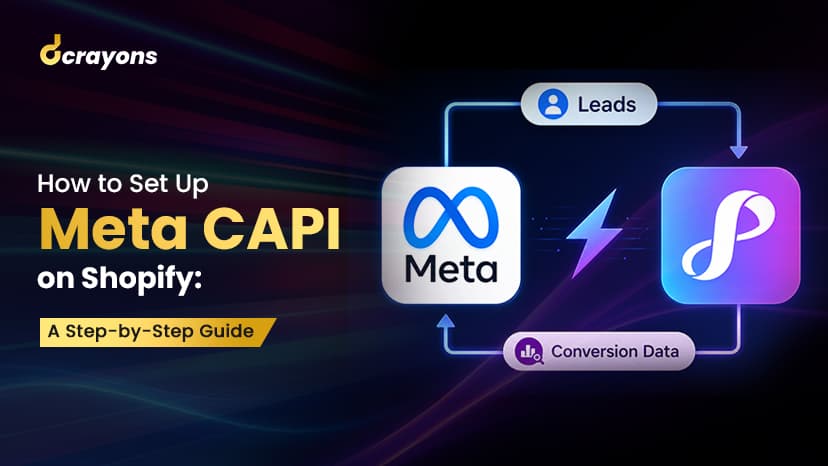
Conversions API (CAPI) is the server-side fix. Instead of the customer's browser sending the conversion event, your server sends it directly to Meta. The Pixel still fires; CAPI is the redundant + more-reliable second channel. Meta dedupes the two so no conversion is double-counted.
The result: Meta sees more of your real conversions, the algorithm optimises against a cleaner signal, your ROAS improves typically 10-25 percent within 30 days of a clean CAPI setup.
This guide walks through the setup full-scope on Shopify. Doable in 45-90 minutes if you have admin access to your Shopify + Meta Business Manager. Mistakes are common; the second half flags them.
What you need before starting
- Meta Business Manager admin access to your business + ad account + pixel + dataset.
- Shopify admin access at the store-owner or staff-admin level.
- A registered + verified Meta Pixel already firing on your store (the standard
purchase,add_to_cart,view_contentevents). - Domain verified to your Business Manager. Settings -> Business Settings -> Brand Safety -> Domains.
- 30 minutes for the setup + another 30 for Test Events validation.
If your Pixel is brand new, do NOT skip the verification step. CAPI won't work without it.
Step 1: enable the native Shopify-Meta integration
Shopify has a native Meta integration that's the simplest CAPI path. If you don't have it installed:
- In Shopify admin, go to Apps -> Customise your store.
- Search "Facebook & Instagram" (the Meta-built app, not third-party clones).
- Install it. The setup flow asks for your Meta Business Manager + ad account + pixel + dataset.
- Select the pixel that's already firing on your store. Do not create a new one; you'll lose all historical events.
- When asked about CAPI / "Maximum data sharing", turn it on. This is the actual CAPI enablement toggle.
Shopify now sends purchase + add-to-cart + view-content events via CAPI in parallel with the browser Pixel. Meta dedupes the duplicates.
What the integration handles for you: - event_id generation matching the browser event - PII hashing (email, phone, IP) per Meta spec - Automatic Standard Events (Purchase, AddToCart, ViewContent, InitiateCheckout, AddPaymentInfo, Search) - Currency + value normalisation
What it doesn't handle: - Custom events beyond the standard set - Server-side enrichment from your CRM - Multi-domain or headless Shopify storefronts (Hydrogen, custom Next.js + Storefront API)
If your store is headless or you need custom events, skip ahead to Step 3 (server-side GTM).
Step 2: validate with Test Events
This is where most setups go wrong. The integration looks like it's working but no events actually reach Meta.
- In Meta Events Manager, open your dataset.
- Click Test Events in the left sidebar.
- You'll see a test event code. Copy it.
- Open an incognito tab + go to your Shopify store.
- Append
?fbc_test_event_code=YOUR_CODEto the URL (or use the browser extension Meta provides). - Browse a product. Add to cart. Initiate checkout. Place a test order (use a Shopify Bogus Gateway test order if you don't want to charge real money).
- Watch Test Events. Each action should appear as TWO events: one labeled "Browser" (the Pixel) and one labeled "Server" (CAPI). Both should be received.
If you see only Browser events: CAPI is not firing. Re-check the Shopify Facebook app setting "Maximum data sharing".
If you see only Server events: The Pixel isn't firing in the browser. Re-check the Pixel installation in your Shopify theme (Online Store -> Preferences -> Facebook Pixel ID).
If you see TWO Server events for the same action: You have a duplicate CAPI setup (the Shopify native integration + a separate sGTM container or third-party app). Pick one; disable the other.
Step 3 (optional): server-side GTM for custom events
If you need more than the standard events. e.g. tracking "viewed pricing page" as a custom event, or enriching purchase events with margin data from your backend. you'll need server-side Google Tag Manager (sGTM).
This is more work. Brief outline:
- Set up a sGTM container on Vercel, Cloud Run, or App Engine.
- Add a Meta CAPI tag in your sGTM container with your pixel ID + access token.
- From your Shopify theme (or backend), send events to your sGTM endpoint via the GTM Client API.
- sGTM forwards to Meta CAPI.
This path is materially more setup but gives you full control. Most Shopify stores don't need it; the native integration covers 80 percent of CAPI value.
Step 4: monitor Event Match Quality (EMQ)
EMQ is Meta's score for how well your CAPI events match real people. Higher EMQ = better algorithm performance.
- In Events Manager -> your dataset -> Overview.
- Find the Event Match Quality score per event type.
- Target: Good (>= 6.0) at minimum, Great (>= 8.0) ideal.
If EMQ is below 6.0, the most common causes:
- Missing user data (email, phone) on CAPI events. The Shopify integration sends what the store has; logged-in customers have more data than guests.
- Wrong hashing format. The Shopify native integration handles this correctly; sGTM custom setups often get it wrong (capitalisation, whitespace, hash algorithm).
- Missing client_ip_address + client_user_agent + fbc + fbp parameters on server events.
Common mistakes
Most CAPI setups fail in one of these ways. Worth checking your setup against the list:
1. Pixel and CAPI fire with different event_ids. Result: Meta counts the same conversion twice. Open Test Events, check that the Browser and Server event for the same action share the same event_id.
2. The CAPI events fire AFTER the customer leaves the success page. Result: the customer-side cookie is gone, EMQ degrades. Make sure the server-side event fires synchronously with the order webhook, not in a delayed job.
3. Multiple CAPI sources fight each other. Result: events duplicated or missing depending on which fires first. Pick ONE source (native Shopify integration OR sGTM OR a third-party app), not multiple.
4. Aggregated Event Measurement (AEM) priorities not set. For iOS users, only the top-8 prioritised events are tracked. In Events Manager -> Settings -> Aggregated Event Measurement, rank: Purchase > AddToCart > InitiateCheckout > Lead > ViewContent > Search > etc. Without this ranking, iOS conversions get under-attributed.
5. Domain not verified. Without domain verification, Meta won't trust your CAPI events as eligible for ad-set optimisation. Settings -> Business Settings -> Brand Safety -> Domains.
6. CAPI access token expired or revoked. Symptoms: Test Events stop showing Server events overnight. Regenerate the token in Events Manager.
What to do once CAPI is live
- Wait 7-14 days for Meta to learn from the cleaner signal.
- Compare attributed conversions before and after CAPI. Most stores see a 8-18 percent lift in reported conversions.
- Compare ROAS before and after. Improvement typically 10-25 percent.
- Re-evaluate your campaign structure if you previously used aggressive last-click attribution (Meta will now attribute more correctly).
- Document the CAPI setup in your team's runbook so the next person who touches Meta Ads knows it's there.
Next steps
If you've completed this guide and your CAPI is firing cleanly, you're in better shape than 70 percent of Shopify stores running Meta Ads. The next operational steps:
- Set up Advantage+ Shopping Campaigns if you haven't already. CAPI + ASC is the dominant 2026 Meta-Ads-on-Shopify pattern.
- Review your Aggregated Event Measurement (AEM) priorities. the iOS events ranking matters more than most teams think.
- Build a monthly EMQ + Test Events check into your team's calendar. CAPI breaks silently; monitoring catches it.
Need help validating your setup or pushing CAPI from "working" to "optimised"? Reach out via the contact form and we'll review your account.