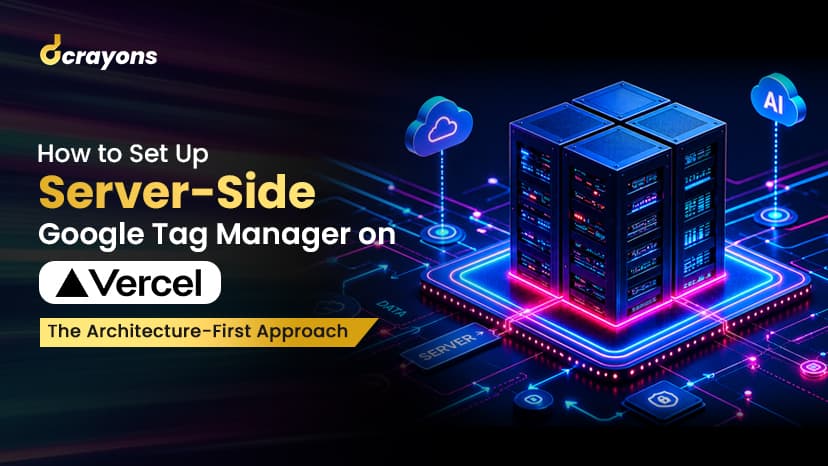
Server-side Google Tag Manager (sGTM) is the architectural answer to the question "How do we send accurate conversion data to multiple ad platforms in 2026 without the browser pixel losing 30 percent of it?"
This walkthrough takes you from zero to a working sGTM container on Vercel, forwarding events to Meta CAPI + Google Ads + TikTok Events API + a warehouse endpoint. It assumes you've already set up the native Shopify-Meta integration (see How to Set Up Meta CAPI on Shopify) and you're now ready to graduate to a full server-side stack.
Time to complete: 3-5 hours for the basic setup, another 4-8 hours for production hardening.
When is sGTM the right next step?
sGTM is over-engineering for most brands. It's the right step when:
- You run more than one ad platform (Meta + Google + TikTok + LinkedIn) and want unified instrumentation
- You need custom events beyond the standard set
- You want backend data (CRM, warehouse, payment processor) enriching events before they hit ad platforms
- Your team has TypeScript + DevOps capacity (or you have a partner that does)
- Your conversion volume justifies the infrastructure cost (typically Rs 50 lakh+ monthly revenue)
If none of these apply, the native Shopify-Meta + Shopify-Google integrations are fine. Don't over-architect.
What you need before starting
- A Google Tag Manager account (free)
- A Vercel account (free tier works for getting started; Pro recommended for production)
- A custom subdomain for sGTM (e.g.,
track.yourstore.com). you'll set DNS for this - Admin access to Meta Business Manager, Google Ads, and any other destinations you'll connect
- Local dev environment with Node.js 22+ + npm
Step 1: create the server container in Google Tag Manager
- In GTM, click "Create Account" or open your existing account.
- Click "Add a new container" → choose "Server" as the target platform.
- Pick "Manually provision tagging server" (don't pick the App Engine option; we're deploying to Vercel).
- GTM gives you a config string. Copy it. you'll need it in step 3.
The server container is now created in GTM but doesn't actually run anywhere yet. The next step deploys it.
Step 2: pick the deployment target
sGTM can deploy to:
| Target | Strengths | Trade-offs | Cost |
|---|---|---|---|
| Vercel | Edge network, automatic HTTPS, git-push deploys, low latency | Function execution time limits | Rs 1,500-15,000/month at typical D2C volume |
| Google Cloud Run | Native Google product, deep GCP integration | More setup; needs GCP project | Rs 2,000-20,000/month |
| AWS Lambda + API Gateway | Familiar if you're already AWS-shop | More moving parts | Rs 1,500-15,000/month |
| Self-hosted (EC2 / Lightsail / DigitalOcean droplet) | Cheapest, most control | You operate it (patches, scaling, monitoring) | Rs 1,200-4,000/month |
This guide uses Vercel because the deploy story is cleanest for a marketing team without a dedicated platform engineer. The official Google sGTM Docker image works on Cloud Run + Vercel + ECS + bare metal equally well.
Step 3: deploy the sGTM container to Vercel
- Create a new directory locally:
mkdir my-sgtm && cd my-sgtm
- Create a
Dockerfile:
FROM gcr.io/cloud-tagging-10302018/server-side:latest
ENV CONTAINER_CONFIG=PASTE_YOUR_CONFIG_STRING_HERE
ENV PORT=8080
EXPOSE 8080
Replace PASTE_YOUR_CONFIG_STRING_HERE with the config string from step 1.
- Create a
vercel.json:
{
  "builds": [
    { "src": "Dockerfile", "use": "@vercel/docker" }
  ],
  "routes": [
    { "src": "/(.*)", "dest": "/" }
  ]
}
- Push to a new Vercel project:
git init
git add .
git commit -m "Initial sGTM container"
vercel --prod
Vercel returns a .vercel.app URL. Test it: curl https://your-sgtm.vercel.app/healthz should return a 200.
Step 4: point your custom subdomain at Vercel
The sGTM URL needs to be on YOUR domain for first-party cookie + correct CORS behaviour. The .vercel.app URL works for testing but isn't suitable for production.
- In your DNS provider, create a CNAME record:
track.yourstore.com CNAME cname.vercel-dns.com
-
In Vercel project settings → Domains, add
track.yourstore.com. -
Wait 5-30 minutes for DNS propagation + Vercel-managed HTTPS certificate.
-
Test:
curl https://track.yourstore.com/healthzshould return 200.
Step 5: configure the GTM server container
Back in GTM (server-container view):
-
Containers → Settings. paste your custom subdomain (
https://track.yourstore.com) as the "Container URL". -
Tags → New. start with the Google Analytics 4 Client tag: - Tag type: "Google Analytics: GA4" - Measurement ID: your GA4 property's ID - Trigger: "All Pages" or your event-specific trigger
-
Tags → New. add the Meta CAPI tag: - Tag type: "Facebook Conversions API" (community template. install from the Tag Template Gallery) - Pixel ID: your Meta Pixel ID - Access Token: generate from Meta Events Manager → Settings → Conversions API → Generate Access Token
-
Tags → New. add the Google Ads conversion tag: - Tag type: "Google Ads Conversion Tracking" - Conversion ID + Label: from Google Ads → Tools → Conversions
-
Tags → New. add the TikTok Events API tag (if running TikTok Ads): - Tag type: "TikTok Events API" (community template) - Pixel ID + Access Token from TikTok Events Manager
-
Triggers. configure each tag's trigger (Purchase events fire on
event_name = purchase, etc.) -
Submit + Publish when ready.
Step 6: connect the client (your storefront) to the server
The client-side GTM container needs to send events to your server container.
-
In your CLIENT-side GTM container (the regular web container on your storefront): - Variables → Built-in Variables. enable all standard variables - Tags → Google Analytics: GA4 Configuration. set the "Server Container URL" field to
https://track.yourstore.com -
Update your Shopify theme to send events to GA4 (most stores already do this; verify in the theme
theme.liquidor via the GTM client snippet) -
Test in Preview mode (GTM has a Preview button). open your storefront, trigger an event (add to cart, purchase), watch the events flow from client to server.
Step 7: validate with Test Events
For Meta:
- Meta Events Manager → your pixel → Test Events
- Copy the test event code
- Add
?fb_test_event_code=YOUR_CODEto your test browsing session - Browse + add to cart + checkout
- Verify events appear in Meta Test Events with BOTH
event_source_urlandaction_source: website
For Google Ads:
- Google Tag Assistant (Chrome extension) → enable Tag Assistant on your store
- Browse + add to cart + purchase
- Verify conversion tag fires + the conversion appears in Google Ads → Tools → Conversions within 24 hours
If events don't appear, the most common culprits:
- DNS not fully propagated (wait + retry)
- CORS misconfigured (sGTM Container URL doesn't match the domain your storefront points at)
- Access token expired (regenerate from Meta Events Manager)
- Triggers not firing on the client-side (use GTM Preview to debug)
Step 8: production hardening
The first version works. Production-ready takes a few more steps.
Add monitoring
- Vercel Analytics. measure function invocations + latency per endpoint
- Sentry or Logflare. catch errors thrown by tag execution
- Meta Events Manager → Event Match Quality. weekly review
Set up alerting
- Sudden drop in server-side event count (more than 30 percent week-over-week) → page the team
- EMQ score below 6.0 → page the team
- Vercel function execution rate spike (cost signal) → notify the team
Configure rate limiting + DDoS protection
- Vercel includes DDoS protection by default at the edge
- Add a simple rate-limit per IP in the sGTM container if you're worried about abuse
Document the setup
Write a runbook: what's deployed, where, who has access, what to do when X breaks. The next person who touches this should be able to recover from a Sunday-night outage without you.
What does this cost in practice?
For a Shopify store doing 5,000-30,000 monthly conversions:
| Cost line | Monthly | Notes |
|---|---|---|
| Vercel hobby tier | Rs 0 | Up to ~100K invocations |
| Vercel Pro tier | Rs 1,800 | Recommended for production (analytics + better limits) |
| Vercel function execution beyond included quota | Rs 0-8,000 | Depends on event volume |
| GTM | Rs 0 | Server-side container is free |
| Sentry hobby tier | Rs 0 | First 5K errors free |
| Custom domain + DNS | Rs 0 | Existing DNS + SSL handled by Vercel |
| Initial setup time (one-shot) | 8-15 engineering hours | Internal or partner |
| Monthly maintenance | 2-4 engineering hours | Monitoring, tag updates, occasional debugging |
Total monthly run cost: Rs 2,000-10,000 for a typical mid-market Shopify D2C.
What this finds
Once sGTM is operational:
- Send the same events to Meta + Google + TikTok + LinkedIn from one source. change one config, propagate everywhere
- Enrich events server-side with CRM data (LTV bucket, customer tier, region) before forwarding to ad platforms
- Send events to your warehouse (Snowflake / BigQuery) for cross-channel attribution. the foundation for enterprise MMM
- Survive iOS 14.5+, third-party cookie deprecation, and ad-blocker prevalence
- Build a single instrumentation source of truth that doesn't drift across ad platforms
Common mistakes
- Not using a custom subdomain. First-party cookies + correct attribution depend on the sGTM endpoint being on YOUR domain.
- Forgetting
event_idfor deduplication. The browser event and server event MUST share the sameevent_idso Meta and Google don't double-count. - Sending too many events. Every page view + every scroll + every click does NOT need a server-side event. Be selective.
- Not monitoring Event Match Quality. EMQ degrades silently; catch it via weekly review.
- Hardcoding access tokens. Use environment variables (Vercel handles secret storage). Tokens get rotated; hardcoded tokens break silently.
Production checklist
For an sGTM deployment to be production-ready:
- Custom subdomain (track.yourstore.com) live with valid HTTPS
- GTM server container deployed on Vercel + reachable
- Meta CAPI tag firing with event_id deduplication validated via Test Events
- Google Ads conversion tag firing + conversions appearing in Google Ads dashboard
- TikTok / LinkedIn / other platform tags firing as needed
- Client-side GTM container points at the server URL
- Test Events validated for every standard event (Purchase, AddToCart, ViewContent, InitiateCheckout)
- Event Match Quality baseline captured + monthly review scheduled
- Monitoring + alerting wired (Vercel Analytics, Sentry, EMQ alerts)
- Runbook documented; the next person can recover from outage without you
- Cost monitoring + alerts; surprise bills don't ambush the finance team
- Quarterly governance review: events firing, EMQ healthy, attribution reconciling, cost in budget
References + linked context
- Dcrayons glossary: conversions-api, edge-runtime, smart-bidding
- Dcrayons reference architectures: Server-side tracking for Shopify D2C, Enterprise Google Ads, Enterprise Meta Ads
- Earlier tutorial: How to Set Up Meta CAPI on Shopify
If your sGTM setup is misbehaving or you want a sanity check before going live, reach out via the contact form for a 30-minute review.